

Common Laptop Keyboard Issues & Best Fix Options
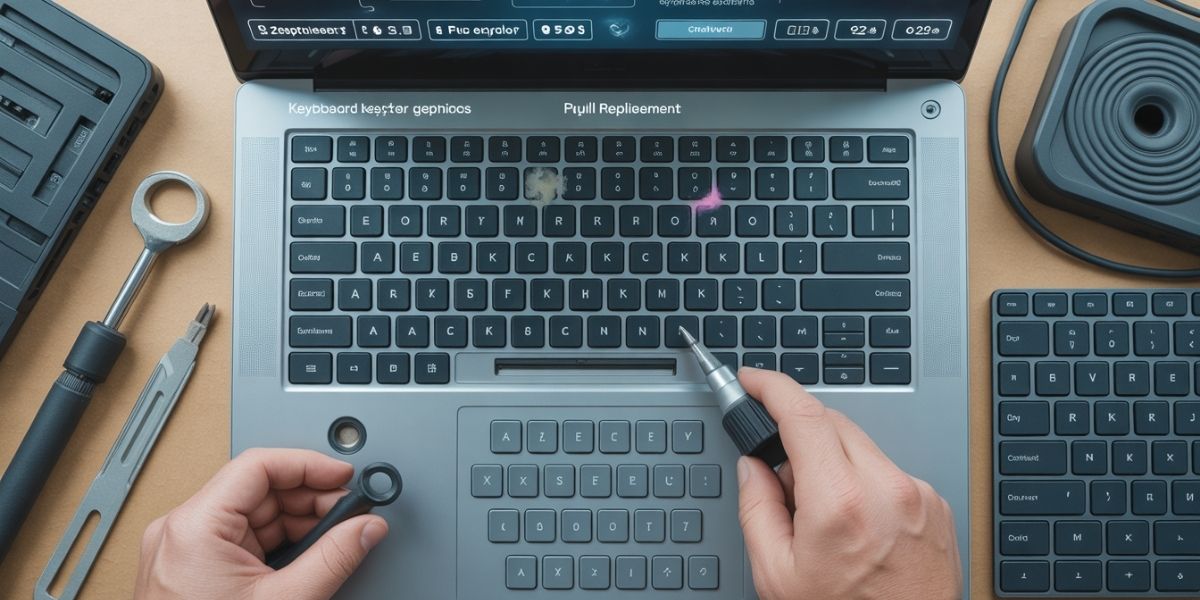
Laptop keyboards play a central role in daily productivity, communication, and workflow. When keys fail, stick, or stop responding entirely, even basic tasks become frustrating. Many users experience laptop keyboard problems at some stage, especially as devices age or face regular use. These faults rarely appear without warning and often develop gradually due to wear, internal faults, or environmental exposure.
Understanding how keyboard issues develop helps users respond quickly and avoid more serious damage. This keyboard repair guide explains frequent keyboard faults, early warning signs, and practical repair options that restore reliable performance.
How Laptop Keyboards Function
Key Mechanism and Signal Flow
Laptop keyboards rely on a thin membrane or scissor-switch structure that registers keystrokes through electrical signals. Each key connects to a circuit path beneath the keyboard surface. When pressed, the circuit closes and sends data to the motherboard.
Any disruption along this path affects responsiveness. Dust, wear, liquid residue, or connector issues interfere directly, leading to laptop keys not working as expected.
Common Keyboard Issues Users Encounter
1. Unresponsive or Dead Keys
Some keys stop responding entirely, while others register input inconsistently. This issue often begins gradually before spreading across the keyboard. Users attempting to fix unresponsive keyboard faults usually discover underlying debris, worn contacts, or ribbon cable instability.
2. Repeating or Stuck Keys
Keys that repeat characters or feel physically stuck indicate mechanical wear or contamination. Dust particles, food crumbs, or residue restrict movement and trigger unintended inputs. This fault affects typing accuracy and speed significantly.
3. Keycap Wear
Frequent use wears keycaps and underlying switches. Letters fade, surfaces flatten, and tactile feedback diminishes. Over time, worn keys fail to register reliably. Keycap replacement offers a cost-effective solution when switches remain intact.
Causes Behind Keyboard Failures

1. Accumulated Dust and Debris
Daily usage exposes keyboards to dust, fibres, and small particles. Over time, debris settles beneath keycaps and interrupts contact points. Even clean workspaces contribute to a gradual buildup that impacts key response.
2. Liquid Exposure
Spills remain one of the most damaging factors affecting keyboards. Liquid seeps beneath the surface, creating corrosion across circuits. Symptoms may appear hours or days later, including erratic input or complete failure. Early intervention reduces long-term damage.
3. Driver Conflicts
Outdated or corrupted keyboard drivers disrupt communication between the hardware and the operating system. Users may notice delays, missing inputs, or total non-response. Reinstalling drivers resolves many apparent hardware problems quickly.
4. Operating System Glitches
System updates sometimes introduce temporary conflicts. These issues mimic physical faults but originate in software behaviour. Testing keyboards during safe mode helps isolate software-related causes.
5. Internal Cable Displacement
Laptop keyboards connect through ribbon cables seated inside the chassis. Impacts or pressure may loosen these connectors. Even slight displacement interrupts signal flow. Technicians inspect internal seating during diagnosis to rule out connection issues.
Diagnosing Keyboard Problems
Identifying Patterns
Certain patterns reveal root causes. Random non-responsive keys suggest debris or wear, while complete failure often points toward connector or software issues. Testing external keyboards helps confirm internal faults.
Professional Diagnostic Tools
Technicians rely on diagnostic software and hardware inspection to locate faults accurately. This structured approach avoids unnecessary replacements and targets the actual cause. A professional laptop repair shop uses systematic testing rather than trial-and-error methods.
Repair Options Based on Issue Severity
Cleaning and Minor Repairs
Light contamination responds well to professional cleaning. Compressed air, contact-safe solutions, and careful disassembly restore responsiveness. These services suit early-stage laptop keyboard problems effectively.
Key or Keycap Replacement
Single-key failure does not require full keyboard replacement. Replacing individual components restores function while controlling cost. A professional repair service focuses on precise repairs that preserve original hardware.
Full Keyboard Replacement
When Replacement Becomes Necessary
Severe liquid damage, widespread failure, or worn membranes require full keyboard replacement. This process involves removing the top panel and installing a compatible unit. Replacement restores original typing performance and longevity.
Replacement Quality Matters
Using manufacturer-grade parts maintains tactile feel and durability. Poor-quality replacements lead to repeated issues. Professional services source compatible components designed for long-term use.
Preventing Future Keyboard Issues
Daily Care Habits
- Keep food and drinks away from laptops to reduce crumbs, grease, and residue settling beneath keys. Small particles gradually interfere with key contact points and typing response.
- Wipe the keyboard surface regularly using a soft, dry microfibre cloth. This limits dust accumulation, which often leads to laptop keys not working over time.
- Use compressed air periodically to clear debris trapped between keys, especially for devices used daily for work or study.
- Carry laptops inside padded sleeves or structured bags. Proper cushioning protects internal ribbon cables and key mechanisms during travel or daily commuting.
- Close the laptop lid gently after use. Excessive pressure during closure stresses the keyboard deck and internal components.
Environmental Awareness
- Keep laptops away from damp areas such as kitchens, bathrooms, or windowsills. Moisture exposure increases corrosion risk inside keyboard circuits.
- Maintain stable room temperatures. Prolonged heat or cold affects key membranes and reduces long-term responsiveness.
- Don’t place laptops on beds, sofas, or other soft surfaces. Poor airflow raises internal heat levels, accelerating wear on keyboard components.
Early Maintenance Actions
- Respond quickly to stuck keys, delayed input, or missed characters. Minor symptoms often signal developing faults.
- Seek professional inspection when issues persist, as early repair prevents widespread keyboard failure and higher repair costs later.
Wrapping It Up
Keyboard faults disrupt everyday tasks and strain productivity. Understanding common laptop keyboard problems helps users recognise early warning signs and take informed action. Practical steps, combined with professional support, restore reliable performance effectively. This keyboard repair guide highlights solutions that address unresponsive keys, wear-related damage, and internal faults accurately. For dependable repairs and expert assessment, Fone Tech York offers professional keyboard repair solutions designed to restore laptop performance efficiently. Visit today for trusted laptop button repair service and skilled support, offering reliable diagnostics, clear advice, fast turnaround times, quality parts, transparent pricing, and dependable aftercare for laptops, phones, and everyday tech needs.

Leave a Reply