

How to Back Up Your Data Before Getting Your Device Repaired
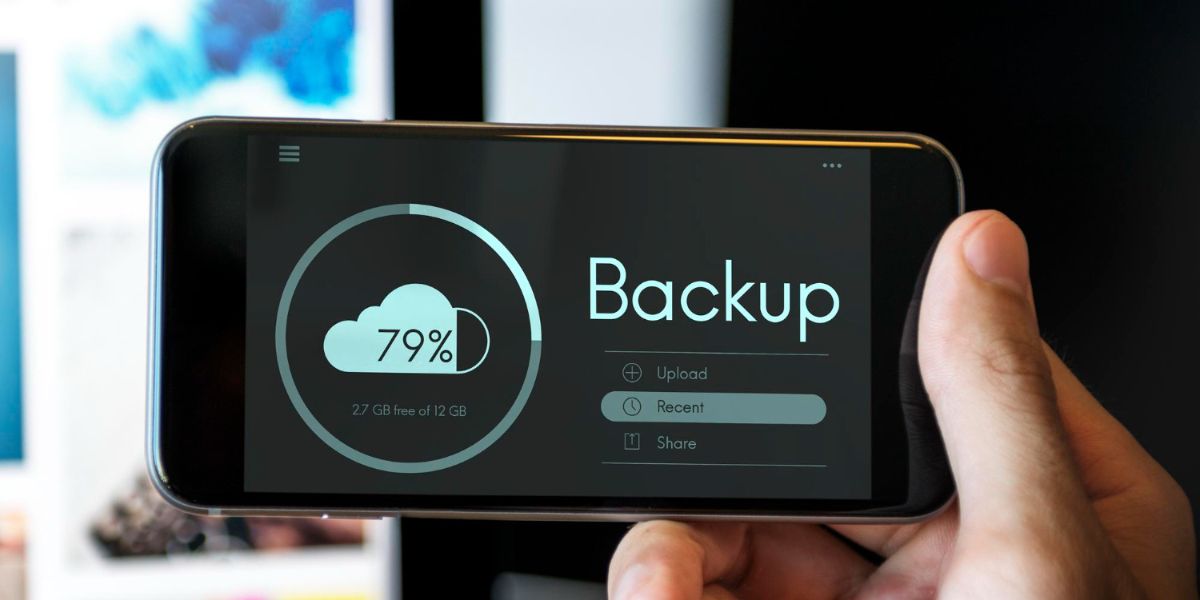
When your phone stops working properly, and you need to hand it over for repair, the last thing you want is to lose years of photos, messages, contacts, and important files. Most repairs, if it’s a cracked screen, battery replacement, or software fix, are straightforward, but there is always a small risk that something goes wrong, and your device needs to be wiped or replaced.
That is why every reliable technician will tell you the same thing: always complete a full backup before you let anyone touch your phone. This phone data backup guide will walk you through exactly how to back up your smartphone safely and securely, whether you own an iPhone or an Android device.
Backup Options for iPhone Users
Each type of smartphone has different settings for backup. Here are the backup options for iPhone users:
Using iCloud (The Easiest Method)
Apple makes backing up remarkably simple. Here is how to do it:
- Connect your iPhone to Wi-Fi.
- Go to Settings > [Your Name] > iCloud > iCloud Backup.
- Tap “Back Up Now” and keep the screen on until it finishes.
iCloud provides every Apple ID with 5GB of free storage, which typically covers essential data such as contacts, messages, and basic settings. However, if you store a large number of photos, videos, or app data, you may quickly exceed this limit. In that case, you can easily upgrade your storage plan; additional space starts at less than £1 per month for 50GB, and there are higher tiers available for families or heavy users.
To ensure your backups happen seamlessly, check that “iCloud Backup” is switched on. When enabled, your iPhone will automatically back up important data every night while charging and connected to Wi-Fi, protecting your information without you having to remember.
Using a Computer (Mac or Windows)
If you prefer not to use the cloud or want a local copy:
- On a Mac (macOS Catalina or later): connect your iPhone, open Finder, select your device, and click “Back Up Now”.
- On a Windows PC or older Mac: open iTunes, select your device, and click “Back Up Now”.
Tick the box labelled “Encrypt local backup”; this includes health data, passwords, and other sensitive information that iCloud automatically backs up.
Backup Options for Android Users

Now, let’s talk about Android users. Follow these steps on how to back up your smartphone to have complete peace of mind when you hand over your phone for repairs:
Google One
Most Android phones back up automatically to your Google account, but it is wise to force a manual backup before repair:
- Open Settings > System > Backup (or search “backup”).
- Tap “Back up now”.
This saves app data, call history, contacts, settings, and photos (if Google Photos is enabled). You can check what is included under “Account storage”.
Using Your Computer
For a complete local backup:
- Samsung users can use Smart Switch (available for Windows and Mac).
- Other brands can use the free programme “Google’s Android Backup Service” or third-party tools such as Dr.Fone or Mobikin.
Extra Steps for Maximum Safety
Follow these additional steps to ensure maximum safety. Keep in mind, these are for a safe device backup.
1. Back Up Photos and Videos Separately
Even if your primary backup is fully completed, it’s advisable to upload all your photos and videos to cloud services like Google Photos for Android devices or iCloud Photos for iPhones. Doing this the day before your repair ensures your media is safely stored, utilising their free unlimited storage for “high quality” (which is slightly compressed).
2. Export Health and Payment Data
- iPhone: Health data is only saved in encrypted backups.
- Android: Google Fit data is stored in your Google account, but you can export it manually if you use a different app.
3. Save WhatsApp Chats
WhatsApp does not always restore perfectly from cloud backups:
- iPhone: Settings > Chats > Chat Backup > Back Up Now.
- Android: Settings > Chats > Chat backup > Back Up.
4. Write Down or Export Two-Factor Authentication Codes
If you rely on an authenticator app for two-factor authentication, it’s crucial to either transfer the app to a new device before changing or resetting your current device or to write down and securely store the recovery codes carefully. This ensures continued access and prevents potential lockouts.
What Happens During Repair? Why Technicians Ask for a Backup
Even a simple screen replacement rarely touches your data, but more complex repairs (water damage, motherboard work, or software reinstallation) may require a complete wipe. Reputable shops, like Fone Tech York, offer mobile phone repairs in York, UK, with full transparency about your data. Our team insists that customers secure their data in a backup drive before repair. Visit our shop to evaluate your options.
Final Checklist Before You Hand Over Your Phone
- Today, a full backup of either iCloud or Google account was successfully completed.
- Photos have been uploaded separately for safekeeping.
- WhatsApp chats have been backed up to ensure messages are preserved.
- The passcode has been either removed or provided to the technician, as some repairs may require access.
- The ‘Find My iPhone’ or ‘Find My Android’ feature has been turned OFF, since enabling it would prevent the shop from properly testing the device after repairs.
Final Thoughts
Taking fifteen minutes to back up your iPhone or Android properly is the single best way to protect the memories and information you cannot replace. Do it the night before you bring your device in, sleep easily, and collect your repaired phone without a single moment of worry. If you need fast, trustworthy iPhone repairs in York, drop by Fone Tech York today!

Leave a Reply