

How to Clean and Maintain Your Laptop to Prevent Overheating
Have you ever noticed your laptop getting unusually hot during use? This is a common issue that many users experience, especially when running multiple programs or demanding applications. If ignored, it can lead to slower performance, system errors, or even permanent hardware damage.
In this guide, we will explore practical steps for laptop overheating prevention, helping you keep your device running smoothly. Let’s walk you through simple routines that anyone can follow, whether you’re a student, professional, or casual user!
Understanding the Causes of Laptop Overheating
Laptops overheat for several reasons, and recognising them is the first step to prevention. Dust and debris often accumulate in vents and fans, blocking airflow. When this happens, the internal components work harder, generating more heat. Intensive tasks, such as video editing or gaming, push the processor and graphics card to their limits, exacerbating the problem.
Another factor is poor placement. If you use your laptop on a soft surface like a bed or cushion, it restricts ventilation. High room temperatures or direct sunlight can exacerbate this, too. Over time, outdated software or too many background processes strain the system, leading to excess heat. By addressing these issues early, you can avoid costly repairs and extend your device’s life.
Essential Laptop Maintenance Tips
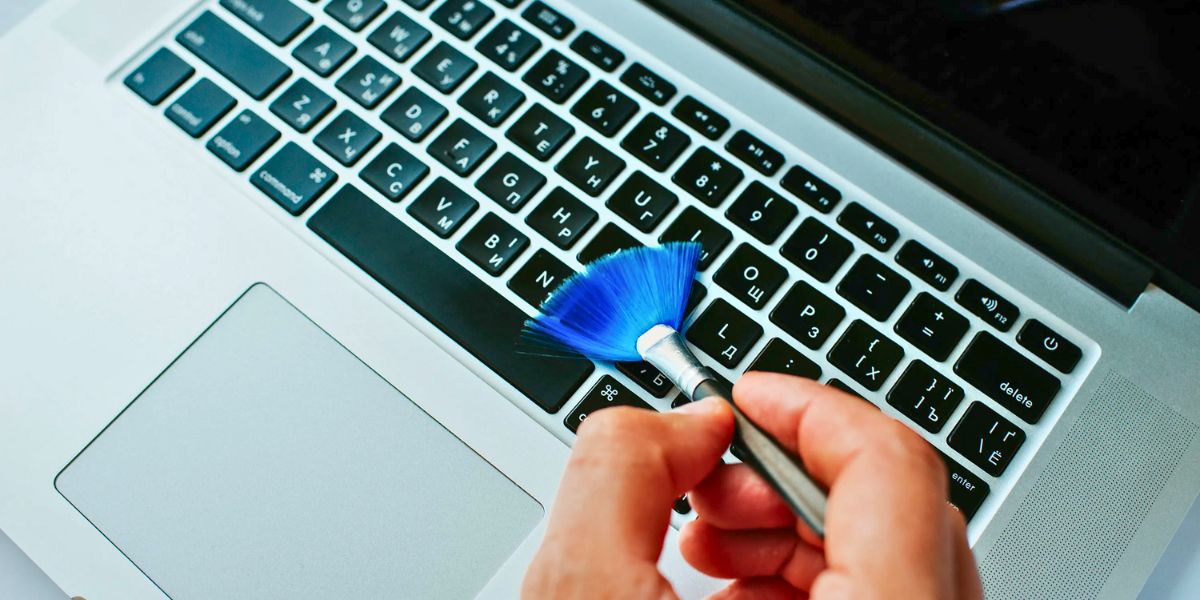
Keeping your laptop in top shape doesn’t require expert skills. Start with regular cleaning to remove dust that accumulates over time. Use a soft, microfiber cloth to wipe the exterior, keyboard, and screen gently. Use water and isopropyl alcohol on a cloth, not directly on the laptop.
For deeper maintenance, focus on the vents. Compressed air in a can is your best friend here; hold it upright and use short bursts to blow out dust from the side and bottom vents. Do this every few months, especially if you notice louder fan noises or warmer surfaces. Turn off and unplug your laptop. These laptop maintenance tips can make a big difference in performance.
How to Clean A Laptop Fan Safely
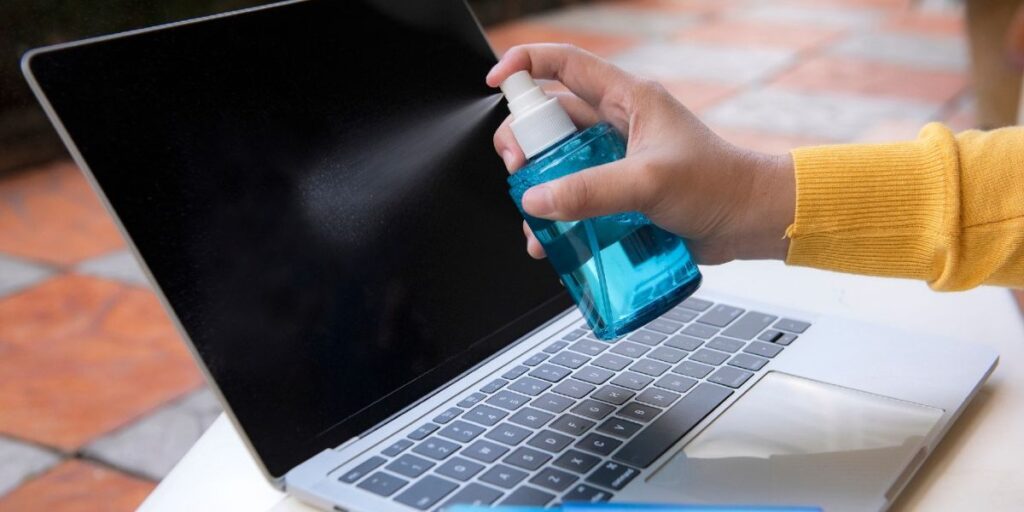
Wondering how to clean a laptop fan without risking damage? It’s straightforward if you take precautions. First, shut down your laptop, remove the battery if possible, and unplug it. Locate the fan vents, typically located on the sides or rear. Use compressed air to dislodge dust, aiming the nozzle at an angle to avoid pushing debris deeper into the unit.
If the fan is accessible by removing the bottom panel, check your model’s manual for screws, and gently brush away buildup with a soft brush or cotton swab. Never use a vacuum cleaner directly, as it can generate static electricity that can harm components. Reassemble everything carefully and test the laptop afterwards. If you’re unsure, it’s better to seek help rather than cause accidental harm.
Optimising Battery and Power Settings
Your battery also plays a role in heat management. Overcharging or using a faulty battery can contribute to overheating. Adjust your power settings to balanced mode instead of high performance when not needed; this reduces strain on the hardware. On Windows, go to the control panel; on macOS, it’s in System Preferences.
Keep an eye on battery health through built-in tools. If it’s degrading, replace it promptly. These adjustments not only prevent heat buildup but also save energy. Have you checked your settings lately? A quick tweak could cool things down.
Creating the Right Environment for Your Laptop
Where you use your laptop matters a lot. Always place it on a hard, flat surface like a desk to allow proper airflow. Avoid laps, carpets, or blankets that trap heat. If you work in bed, invest in a lap desk with built-in ventilation.
Consider the room temperature, keep it between 10°C and 35°C for optimal operation. Direct sunlight or proximity to heaters should be avoided. For extra cooling, a laptop stand or a cooling pad with fans can help circulate air underneath the laptop. These simple changes to your setup can effectively prevent overheating.
Using Accessories for Better Cooling
Cooling pads are affordable and effective. They plug into your USB port and provide additional fans to draw heat away. Choose one that fits your laptop size for the best results. Upgrading the back of your laptop slightly with a stand or even a book can improve airflow, too.
Don’t forget about protective cases; opt for ones that don’t block vents. If you’re into gaming, look for pads designed for high-performance use. These accessories complement your maintenance routine and keep temperatures in check during long sessions.
Software Strategies to Reduce Heat
Software maintenance is just as important as physical cleaning. Keep your OS and drivers up to date to ensure optimal performance. Outdated software can cause unnecessary processing, resulting in excessive heat. Run regular scans for malware, as infections often run background tasks that overwork your system.
Manage startup programs to limit what’s running when you boot up. Close unused applications and tabs to free up resources. Tools like Task Manager on Windows or Activity Monitor on macOS help identify processes that cause heat. By staying on top of these, you’ll notice a cooler, faster laptop.
Monitoring Temperature Levels
How do you know if your efforts are working? Install free software, such as Core Temp or HWMonitor, to track internal temperatures. Aim to keep them below 80°C under load. If they spike regularly, revisit your cleaning or placement habits.
Set alerts for high temperatures to catch issues early. This proactive approach ensures you address problems before they escalate. It’s like giving your laptop a health check-up regularly.
When Professional Help is Needed
Sometimes, despite your best efforts, overheating persists. This could indicate deeper issues like failing hardware or thermal paste degradation. If cleaning doesn’t help or if you hear unusual noises, it’s time to consult an expert.
For instance, if overheating has led to other problems, such as a cracked display, you might need laptop screen repair. Fone Tech York provides reliable repair services. Call us to fix your device quickly!
FAQs
Why does my laptop overheat even after cleaning?
Overheating can still occur due to heavy usage, poor ventilation, or software issues. Check your task manager for resource-hogging apps and ensure your laptop is on a hard surface.
How often should I clean my laptop fan?
Aim to clean it every three to six months, depending on your environment. Dusty areas require more frequent attention to prevent buildup.
Can overheating damage my laptop permanently?
Yes, prolonged high temperatures can damage components such as the battery or motherboard. Regular maintenance helps avoid this risk.
What tools do I need for basic laptop cleaning?
You’ll need compressed air, a microfiber cloth, soft brushes, and isopropyl alcohol. Avoid household cleaners that could damage surfaces.
Final Thoughts
Preventing laptop overheating comes down to consistent care and smart habits. By following these steps, from cleaning vents to optimising software, you’ll enjoy a reliable device that performs well. If problems persist or you require advanced assistance, consider visiting a trusted laptop repair shop, such as Fone Tech York, for professional support. Stay proactive, and your laptop will thank you with a longer lifespan and improved efficiency!

Leave a Reply